
Plugin Registration: update workflow activities in place, with a warning
You’ve added an input to a custom workflow activity, or changed one from text to a number. By the book, Microsoft recommends registering a new major or minor version of the assembly for that, so existing processes keep running on the old one. In practice that is often too much work, especially when the activity shares its assembly with your plug-ins: a new version means new plug-in types, and every plug-in step has to follow. So most of us update the assembly in place instead, and Dataverse kept showing the old arguments in the workflow designer.
The new release of Plugin Registration for XrmToolBox (version 3.2026.11.31) makes updating in place a supported route, with a safety net.
What changed
Updating an assembly now brings in the new input and output arguments of its custom workflow activities.
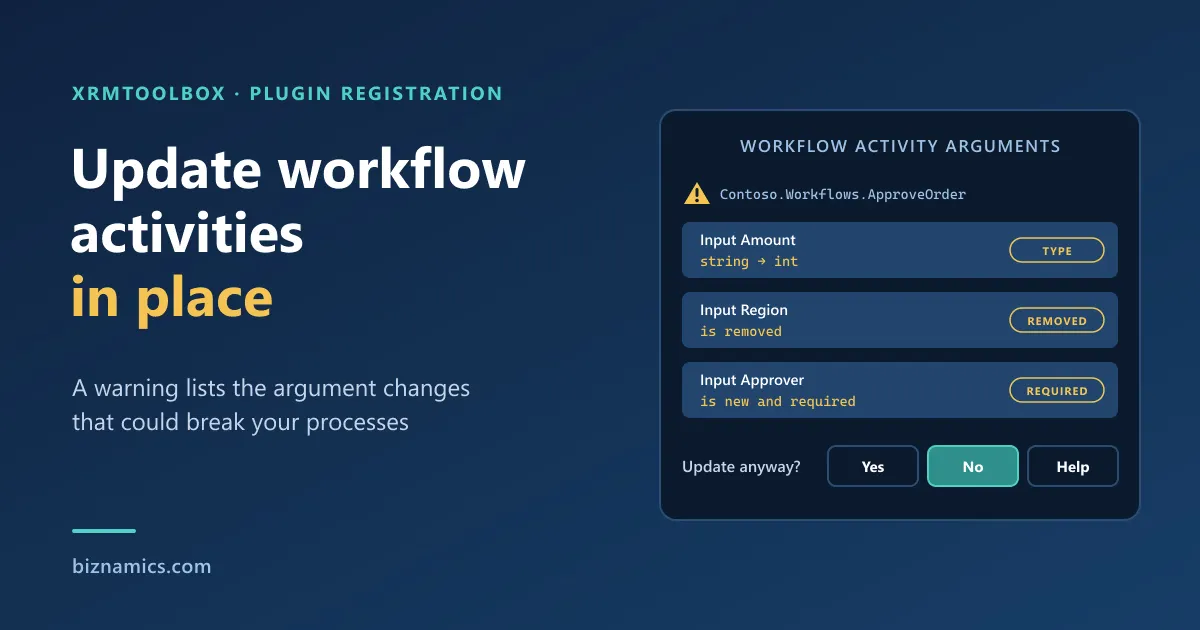
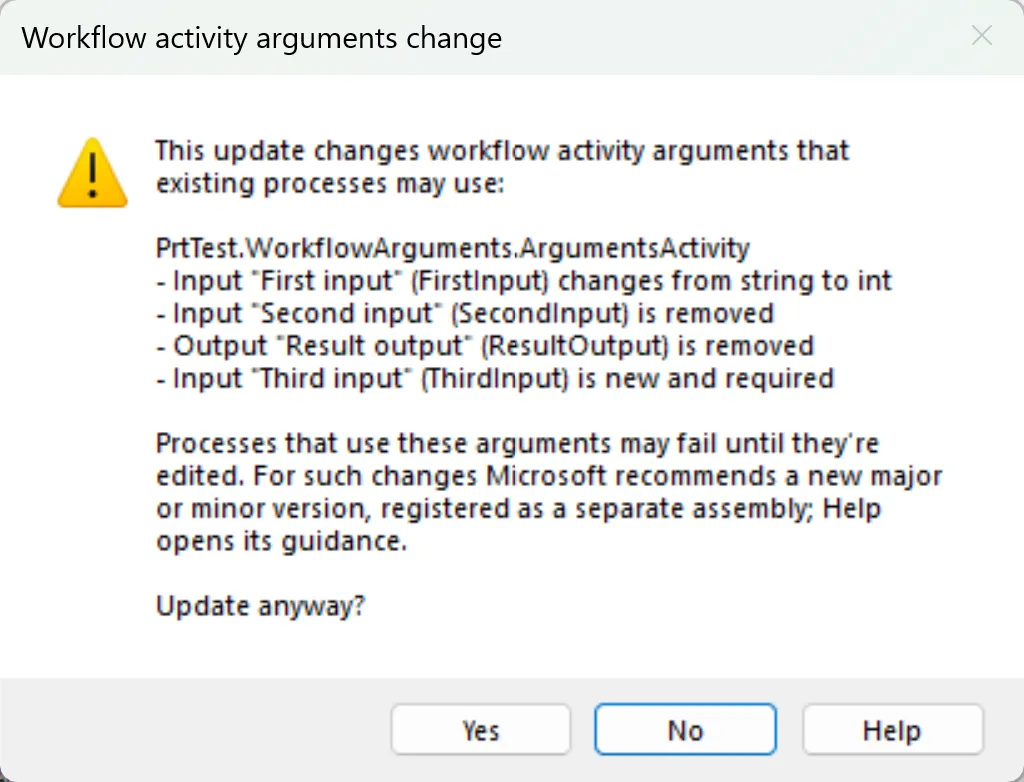
Before it uploads the new build, the tool compares each workflow activity’s arguments with the ones that are registered. If an argument:
- is removed,
- changes type, for example from string to int,
- becomes required, or
- is new and required,
it lists exactly those changes, activity by activity, and asks whether to update anyway. Processes that use those arguments may fail until they’re edited, so No is the default. Yes goes ahead with the update, and Help opens Microsoft’s guidance on changing workflow activities.
Changes that can’t break a process go through without a question: adding an optional argument, or changing an argument’s label.
When to take the new-version route anyway
The warning is there because Microsoft’s advice still holds. Their guide to managing changes to custom workflow activities recommends a new major or minor assembly version when arguments change, so that processes built on the old arguments keep running on the old version while you move them over.
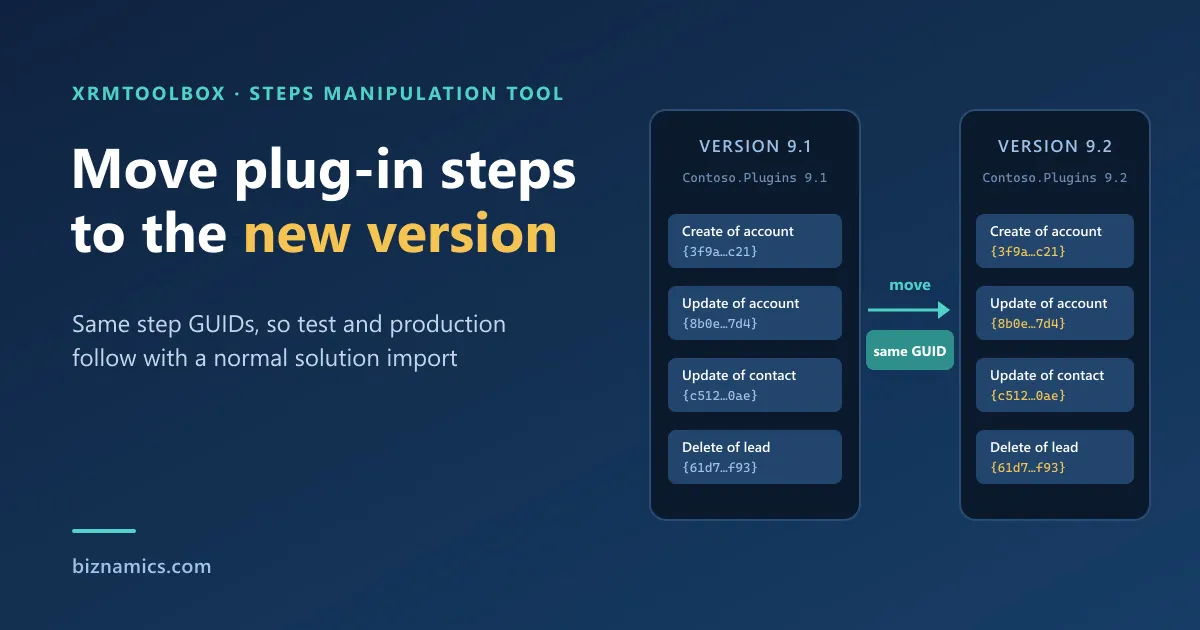
That is the safer choice when many processes use the activity, or when you can’t edit them all at once. If you go that way, the plug-in steps in the same assembly have to move to the new version too. Steps Manipulation Tool moves them across with the same GUIDs, so the change travels to test and production with a normal solution import.
Also in this release
Custom APIs get their own view
View > Display by Custom API (Ctrl+Shift+C) lists every Custom API, also those without steps, with the steps on each API’s message beneath it. Managed APIs, mostly Microsoft’s, stay hidden until you turn off Hide Managed Custom APIs on the toolbar.

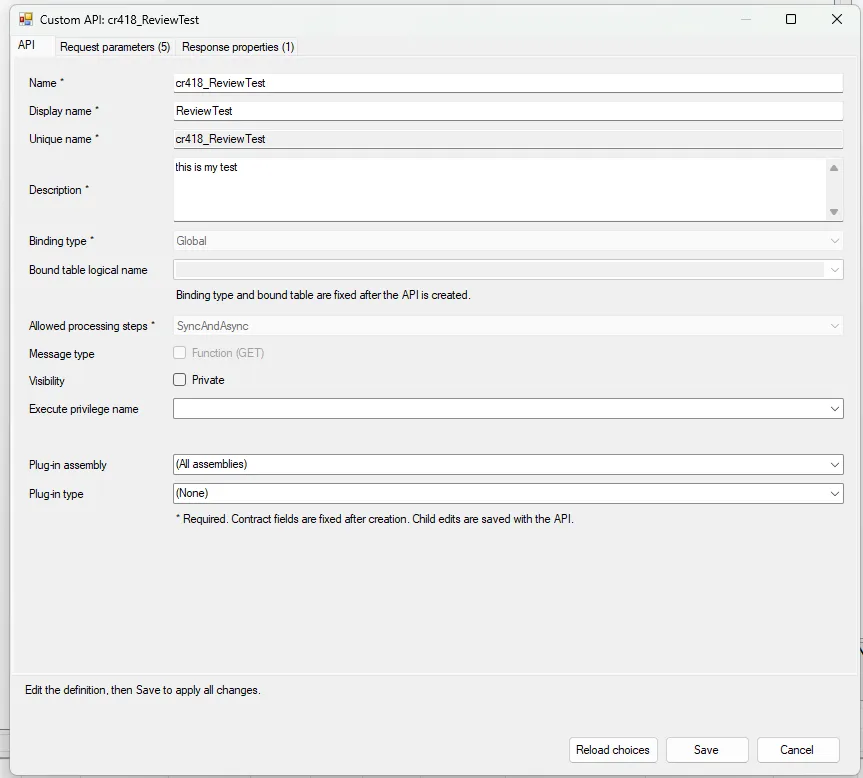
Create, edit and delete a Custom API with its request parameters and response properties in one dialog. A new API goes into an unmanaged solution that you pick or create, with the publisher’s prefix on its unique name. Fields that Dataverse fixes after creation are read-only, and managed APIs can’t be changed or deleted. Add to Solution adds an API with all its parameters and properties in one go.
Azure service endpoints
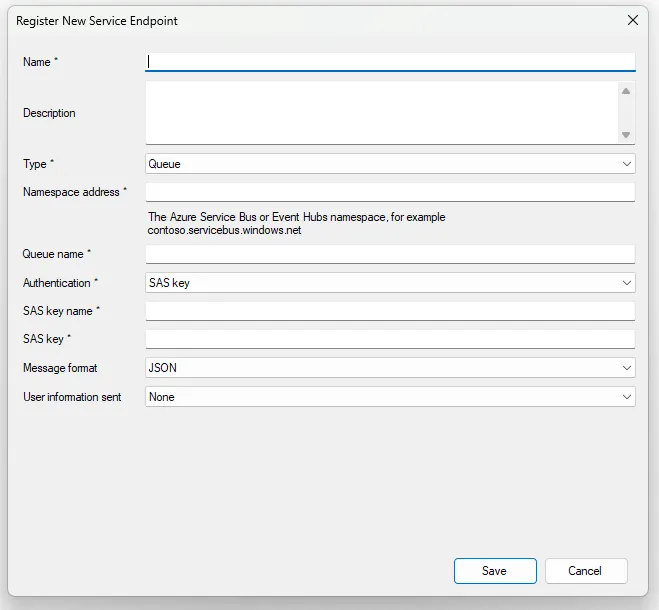
Register and update Azure service endpoints: Service Bus queues and topics, Event Hubs, one-way, two-way and REST relays, and Event Grid, with a SAS key, SAS token or access key. Steps on an endpoint show under it, and can have images. Endpoints that Dataverse manages itself, such as Managed Data Lake, can’t be edited or unregistered.
Type to find
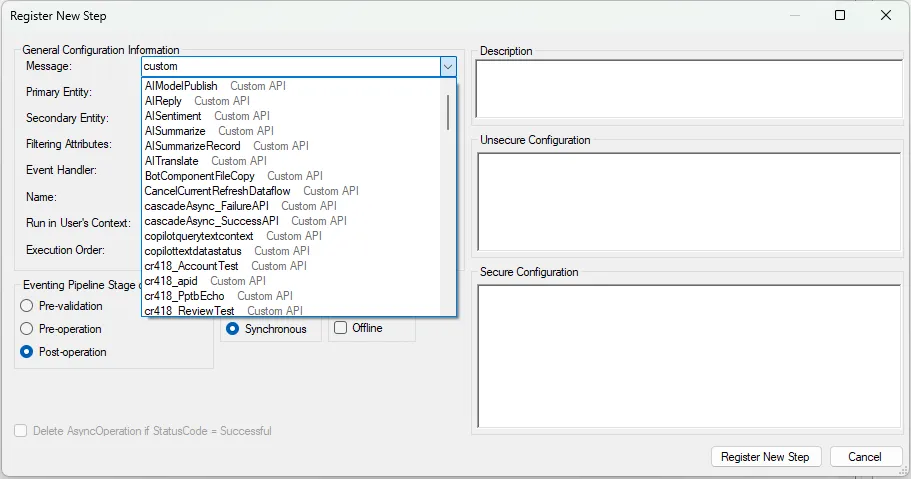
Messages, tables, privileges, plug-in assemblies and plug-in types are all searchable: type any part of a name. Custom API messages are marked Custom API, so typing “custom” lists them all. Assemblies show their version, so two with the same name in different major versions can be told apart.
Smarter registration
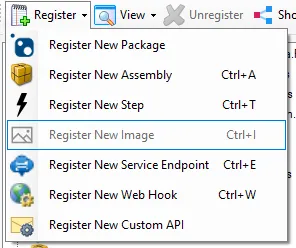
- Menus, toolbar and shortcuts only offer what fits where you clicked. Register New Step appears on a plug-in, service endpoint, webhook, message or Custom API, and Register New Image only on a step.
- On a step whose message can’t have images, such as a Custom API’s, Register New Image is greyed out and its tooltip says why.
- A step on a Custom API that allows only asynchronous steps is set to asynchronous Post-operation for you, with a note saying why.
- New images on Create steps have Post Image ticked, since a Create step can’t have a pre-image.
Sharper icons, and fixes
The icons in the tree were squeezed to 16 pixels in 256 colours. They are now full colour, a little larger, and grow with Windows display scaling. The release also has a batch of fixes, among them each connection showing its own SDK messages, unregistering in the background without freezing XrmToolBox, and a removed reference with two security advisories. The release notes list them all.
Get it
- XrmToolBox: Tool Library → search for Plugin Registration → Install, or update it if you already have it.
- NuGet: Xrm.Sdk.PluginRegistration
- Source code (MIT): imranakram/PluginRegistration
- Release notes: PRT-3.2026.11.031
Plugin Registration started life as the Plug-in Registration Tool sample that Microsoft published with the Dynamics CRM 2011 SDK. In 2015 it was ported to XrmToolBox, and the community has maintained and extended it since. Today it is developed and maintained by Imran Akram at Biznamics. Issues and pull requests are welcome on GitHub; include your XrmToolBox version and the steps to reproduce.