

Steps Manipulation Tool: move plug-in steps to a new assembly version
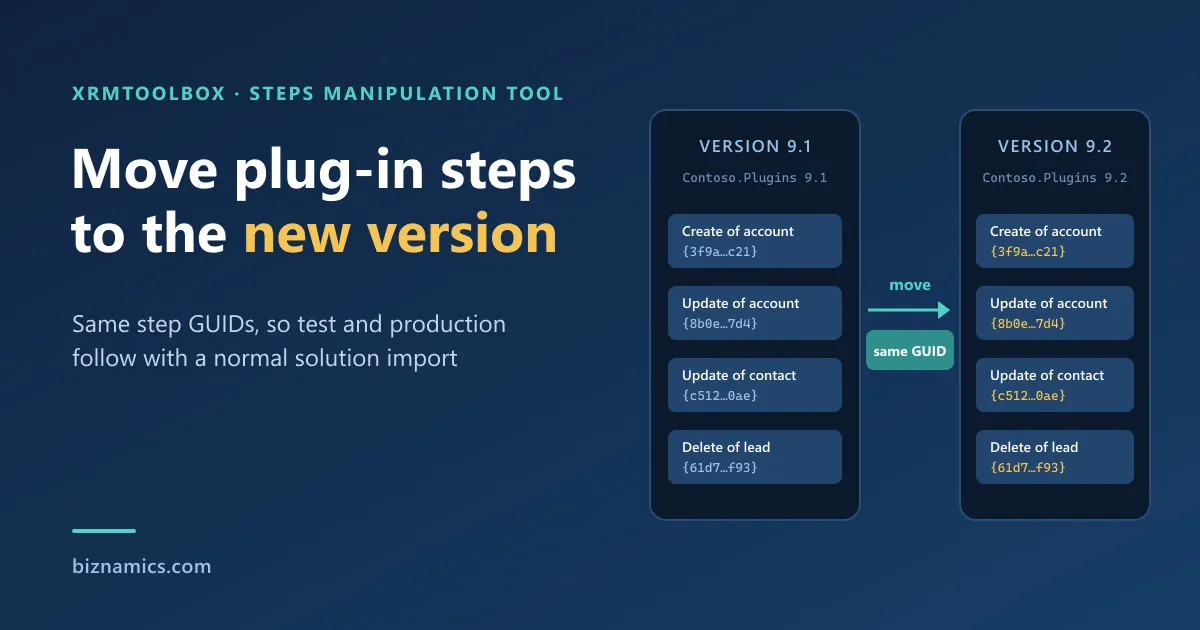
An assembly version is made up of major.minor.build.revision. We use numbers like 9.1.2610.1004, but the rule is the same however you number them. As long as only the build or revision changes (9.1.2610.1004 → 9.1.2611.1020), you update the assembly in place and every step keeps working. Change the major or minor version (9.1 → 9.2, or 10.0) and it’s a different story: Dataverse sees a different assembly, so the new version is registered next to the old one, with its own plug-in types. All your existing steps still point at the old version.
Getting them onto 2.0 is where the headache starts.
The traditional way, and why it hurts
The usual approach is to recreate every step on the new plug-in types and delete the old ones:
- Every step is set up again by hand: message, table, filtering attributes, stage, mode, execution order, pre- and post-images, secure and unsecure configuration. With dozens of steps, something is easily missed or mistyped.
- Every recreated step gets a new GUID. To Dataverse it’s a brand-new component, not the old step moved.
- Then comes ALM. Your solution now contains new steps, but test and production still have the old ones running on the old version. Importing the solution adds the new steps alongside them. Unless someone removes the old steps in each environment at the right moment, the same logic runs twice, or not at all during the switch.
What Steps Manipulation Tool does
The Steps Manipulation Tool for XrmToolBox moves the existing steps to the plug-in types in the new assembly by updating each step record. Only the plug-in type the step points to changes. Nothing is deleted or recreated:
| Recreated on the new version | Moved with the tool | |
|---|---|---|
| Step GUID | New | Same |
| Message, table, filtering attributes | Re-entered | Kept |
| Stage, mode, execution order | Re-entered | Kept |
| Pre- and post-images | Recreated | Kept |
| Secure and unsecure configuration | Re-entered | Kept |
| In the solution | A new component; the old one has to be removed everywhere | The same component, now pointing at the new version |
How the upgrade flows through your environments
Because the steps keep their GUIDs, the change travels with your solution like any other update:
- Development: register the new version of the assembly. It appears next to the old version.
- Development: open Steps Manipulation Tool and move the steps from the old plug-in types to their counterparts in the new assembly.
- Solution: make sure the new assembly is in your solution. The steps are already there, since they’re the same components as before.
- Test and production: import the solution as usual. Dataverse recognises each step by its GUID and updates it to point at the new assembly. The steps move to the new version automatically, with no manual work in the target environment.
- Clean up when it suits you: the old assembly stays in test and production after the import, and so do any steps there that don’t come from your development solution; they keep running on the old version, untouched. Administrators can move or retire those steps and remove the old assembly when they’re ready.
The result: a new assembly version becomes a normal deployment instead of a manual, error-prone cutover in every environment.
How to use the tool
- Open Steps Manipulation Tool in XrmToolBox and connect to your development environment.
- Choose the Source Assembly (the old version) and the Source Plugin, or All types, to list its steps.
- Select the steps to move. Use Ctrl or Shift for several, or right-click → Select All.
- Under Destination, choose the Target Assembly (the new version) and the Target Plugin, the class that now handles those steps.
- Click Move Selected Steps. The list reloads from the environment when the move is done.
Repeat for each plug-in type until the old assembly has no steps left.
Keep a record of before and after. Right-click the selected steps → Export Selected saves a reference-snapshot.xml with each plug-in type, its steps, their message filter, mode, stage and state, and their images. Export before and after the move and compare; only the plug-in type should differ.
Also useful when…
The same move helps in other refactorings: splitting a large assembly into smaller ones, renaming classes or namespaces (which registers new plug-in types), or merging two plug-ins into one. In each case the steps can follow the code without being recreated.
Use it with care
The tool writes directly to plug-in step metadata. Treat it like any other change to production logic:
- Export a solution with the affected assemblies and steps first, as a backup.
- Do the move in development, check it there, and bring it forward through your normal ALM process.
- Make sure each target class really handles the message its steps are registered for. The tool moves the steps; it doesn’t check your code.
- Afterwards, confirm that the steps fire as expected, that images and filtering attributes are intact, and that no duplicate steps exist.
- Test the solution import in a test environment before production, especially with managed solutions and several solution layers.
Get it
- XrmToolBox: Tool Library → search for Steps Manipulation Tool → Install.
- NuGet: ImranAkram.XTB.StepManipulationTool
- Source code (MIT): imranakram/StepsManipulationTool
Steps Manipulation Tool is developed and maintained by Imran Akram at Biznamics, on his GitHub, where new releases are built and published. The first version was created by Olekssi Shytikov. Issues and pull requests are welcome on GitHub; include your XrmToolBox version and the steps to reproduce.